
You got a new iPhone or iPad
A new device is the best time to start with a clean layout, and the worst time to build one icon by icon.
Arrange brings that back. Plug your iPhone or iPad into your Mac and rearrange your whole Home Screen with your mouse and keyboard: every page in view, a dozen apps at a time. When it looks right, press Apply.
Requires macOS 12 Monterey or later, and a cable for your iPhone or iPad.
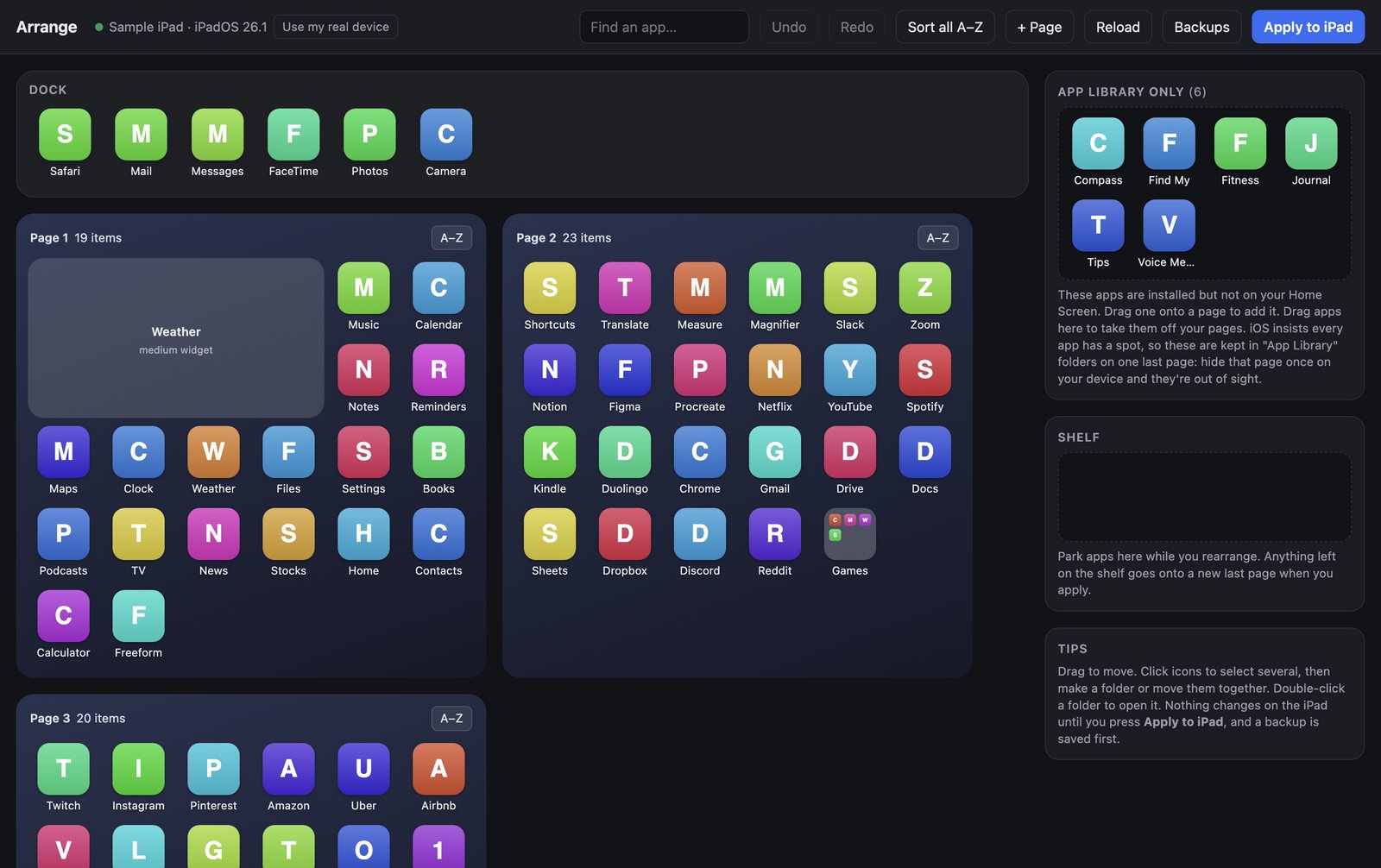
Organizing on the phone itself means pressing and holding until everything wiggles, then dragging icons one at a time, page after page, while the rest of the grid shuffles out of the way.
A new device is the best time to start with a clean layout, and the worst time to build one icon by icon.
Rebuilding years of folders and pages by hand can eat an evening. Arrange gets it done from your desk.
When icons end up out of place, fix the whole layout in one go instead of hunting for each app.
Arrange is for people who have a lot of apps and a Mac on their desk, and who would rather spend ten clicks than an evening getting their Home Screen in order.
Use the big screen, the mouse, and the keyboard you already have. Your phone just stays plugged in.
Plug your iPhone or iPad into your Mac. Its real Home Screen appears in Arrange.
Move apps in batches, build folders, and sort A–Z. This part is free.
Happy with it? Pay $4.99 once, press Apply, and your device updates.
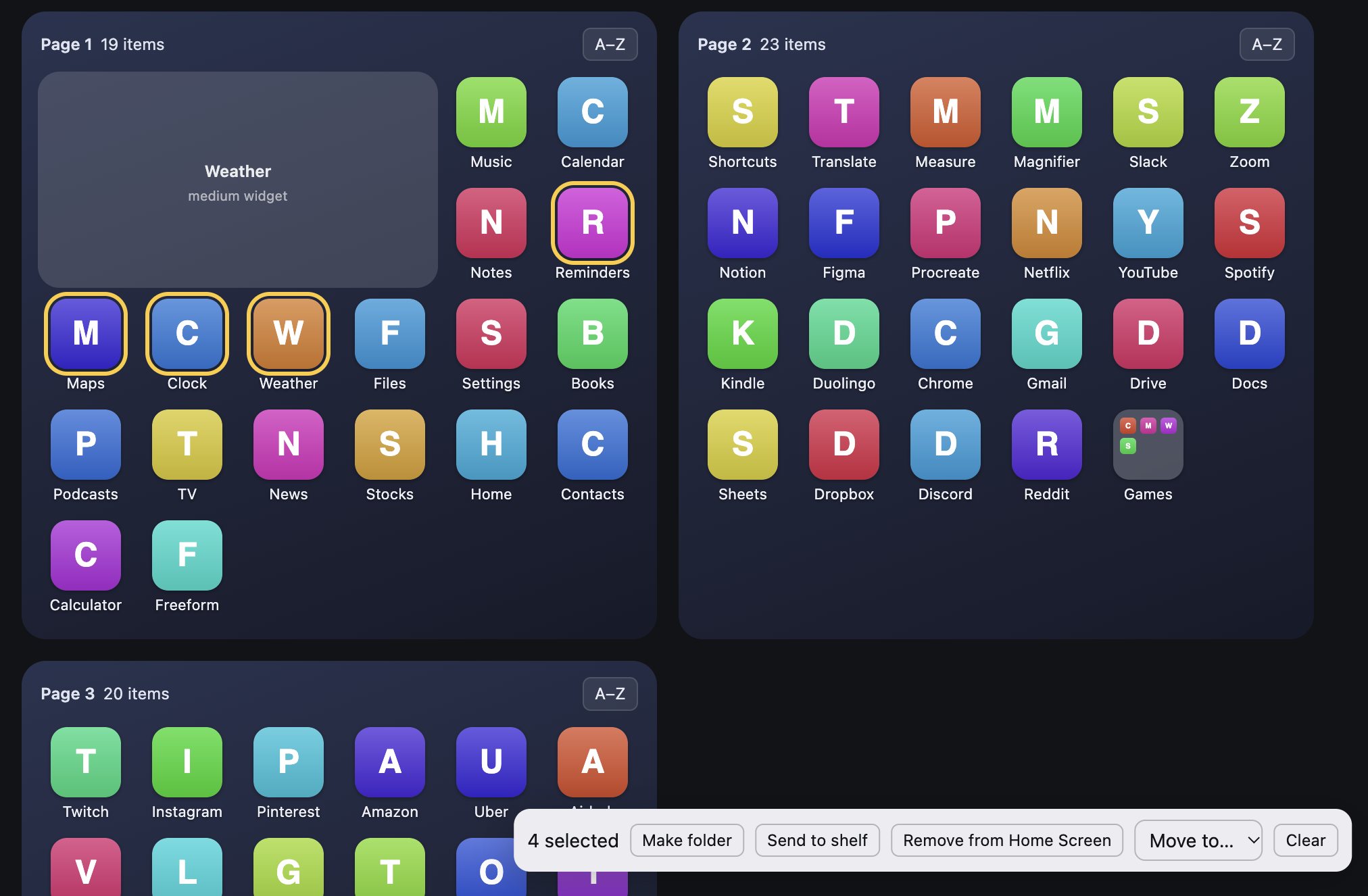
Drag apps between pages, the Dock, and folders. Or click several, then make a folder, move them to a page, or park them on the Shelf while you decide.
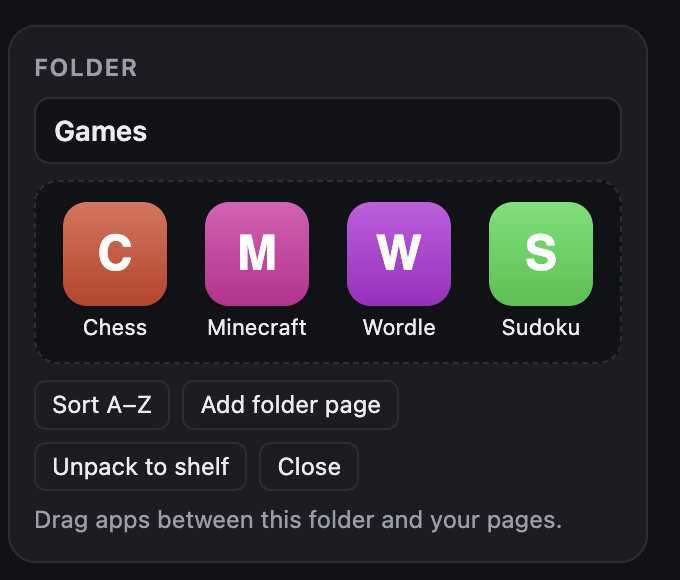
Double-click a folder to open it. Rename it, sort it A–Z, or unpack it onto the Shelf in one click.
Arrange detects which device is plugged in and shows its actual grid: 6 × 5 pages on iPad, 4 × 6 pages and a 4-app Dock on iPhone. What you see is what you get.
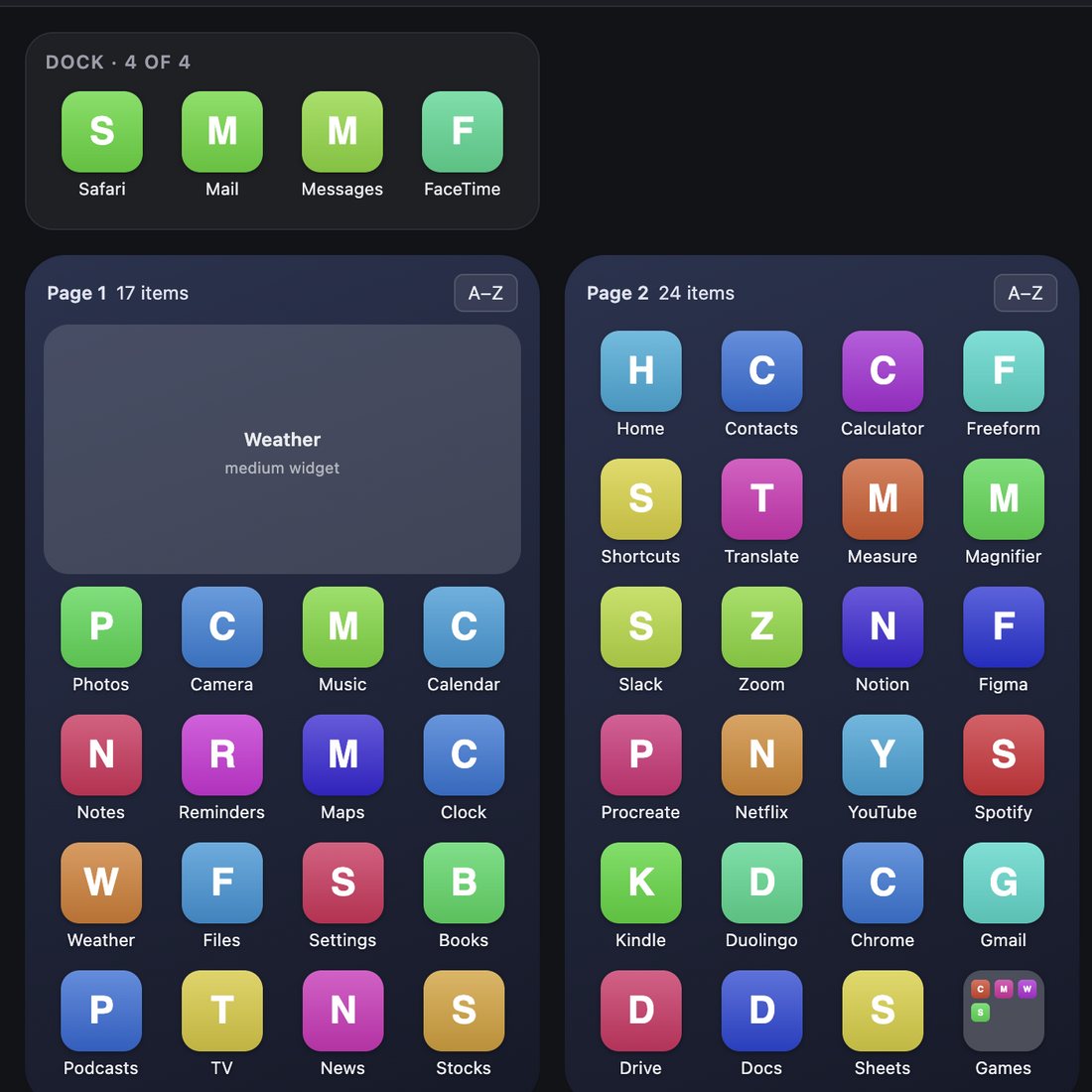
Your device’s real Home Screen appears on your Mac: every page, every folder, and the Dock, laid out on its actual grid.
Select the apps you never use and take them off the Home Screen in one go. They stay installed in the App Library.
Select a group of apps, click Make folder, and name it. Sort it A–Z if you like. Repeat for each group.
Put the apps you use every day on page one and the Dock. Park the maybes on the Shelf while you decide where they go.
Press Apply. Arrange saves a backup of your old layout, then sends the new one to your device.
Every one of these takes a few clicks in Arrange. On the device, most of them take minutes, if they’re possible at all.
Every Home Screen page and the Dock, side by side on your Mac’s screen.
Select several apps and send them to a page, a folder, or the Shelf together.
Select apps, click Make folder, and name it. No dragging one icon onto another.
Alphabetize a single folder, a single page, or your entire Home Screen.
Search for an app by name instead of swiping through pages to find it.
Set apps aside while you plan a page, then drop them in where they belong.
Take apps off your Home Screen. They stay installed and wait in the App Library.
Try a layout. If you don’t like it, undo. Nothing touches your device until Apply.
iOS gives you two ways to organize apps: drag them one at a time, or reset the whole layout to Apple’s default. Arrange gives you everything in between.
| Task | On your iPhone or iPad | With Arrange |
|---|---|---|
| See every page at once | No, one page at a time | Yes, every page and the Dock |
| Move many apps together | Fiddly multi-finger gesture | Click to select, then move |
| Make a folder | Drag one app onto another | Select apps, click Make folder |
| Sort A–Z | Only by resetting the whole layout | A folder, a page, or everything |
| Find where an app lives | Swipe until you spot it | Search by name |
| Undo a change | No | Yes, as you go |
| Backup of your layout | No | Saved before every Apply |
There’s no right answer, and Arrange makes it cheap to try a few. These are common ways people lay out a busy Home Screen.
Page one and the Dock hold the dozen or so apps you open every day. Everything else goes in folders on page two.
Folders like Money, Travel, Photos, Work, Kids, and Games. Sort each one A–Z so you always know where to look.
A work page, a home page, and a weekend page. Pair it with Focus modes on your device if you use them.
Sort the whole Home Screen A–Z in one click. Simple, predictable, and easy to keep up as you add apps.
For years you could plug your iPhone into your computer, open iTunes, and drag your apps around on a big screen. Then iTunes 12.7 removed the feature, and the only way left was on the phone itself, one wiggling icon at a time.
If you used to arrange apps in iTunes, Arrange will feel familiar right away. If you never did, it just feels like the way it should have always worked.
Do all of the rearranging for free. You only pay when your new layout is ready to go onto your device.
You should be able to see that Arrange works with your device before you pay. So everything up to the Apply button is free, and the key is only needed for that last step.
Pricing details →Buy your key inside the app when you’re ready to apply.
Arrange saves a backup of your current layout before it changes anything, and you can restore any backup later.
Rearrange as much as you want. Your device isn’t touched until you press Apply.
There’s nothing to sign up for. Arrange talks to your device directly over USB.
Taking an app off your Home Screen doesn’t delete it. It stays in the App Library.
Arrange is made by EchelonOne, a small independent software company. About EchelonOne
Yes. Download Arrange, plug in your device, and rearrange as much as you like. You can also open a sample iPad or iPhone without plugging anything in. You only need a key when you press Apply.
No. Arrange costs $4.99 once. There is nothing to renew.
No. A key is for one Mac, and it works with every iPad and iPhone you plug into that Mac.
Nothing changes until you press Apply. Arrange saves a backup first, and you can restore any backup later if you change your mind.
No. They stay installed and wait for you in the App Library.
macOS 12 Monterey or later.
That’s the idea. You arrange your Home Screen on your computer and send it to your device. Arrange adds things iTunes never had, like moving many apps at once, sorting A–Z, and a backup before every change.
Try it free. Pay $4.99 once, only when you apply, and use it with every iPhone and iPad you plug into your Mac.