
Everything Arrange can do
Arrange shows your iPhone or iPad Home Screen on your Mac and lets you rearrange it with a mouse and keyboard. Here’s the whole tour.
See your whole Home Screen
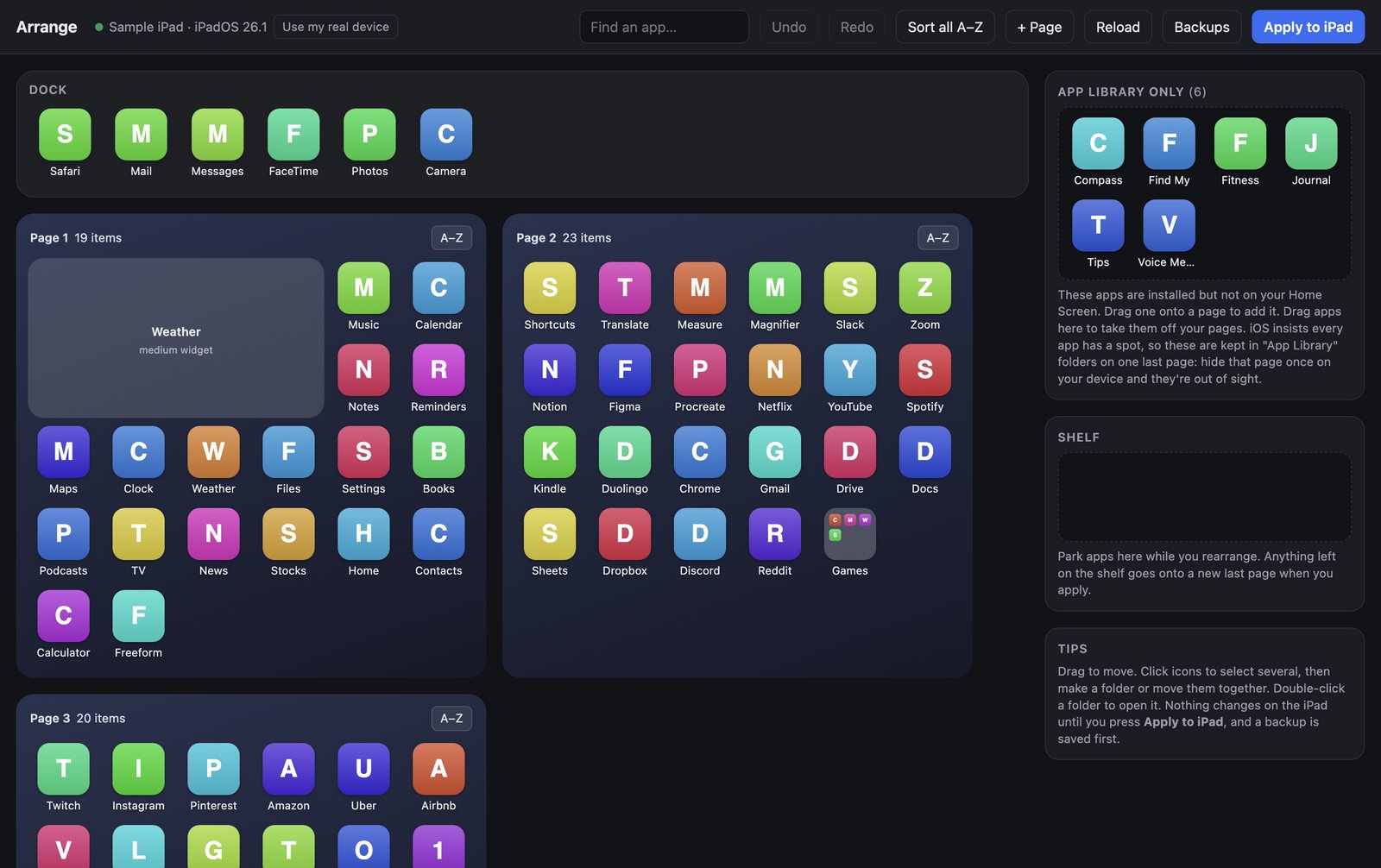
- Every page side by side
- All of your Home Screen pages and the Dock are laid out on your Mac’s screen at once. No more swiping back and forth.
- Your device’s real grid
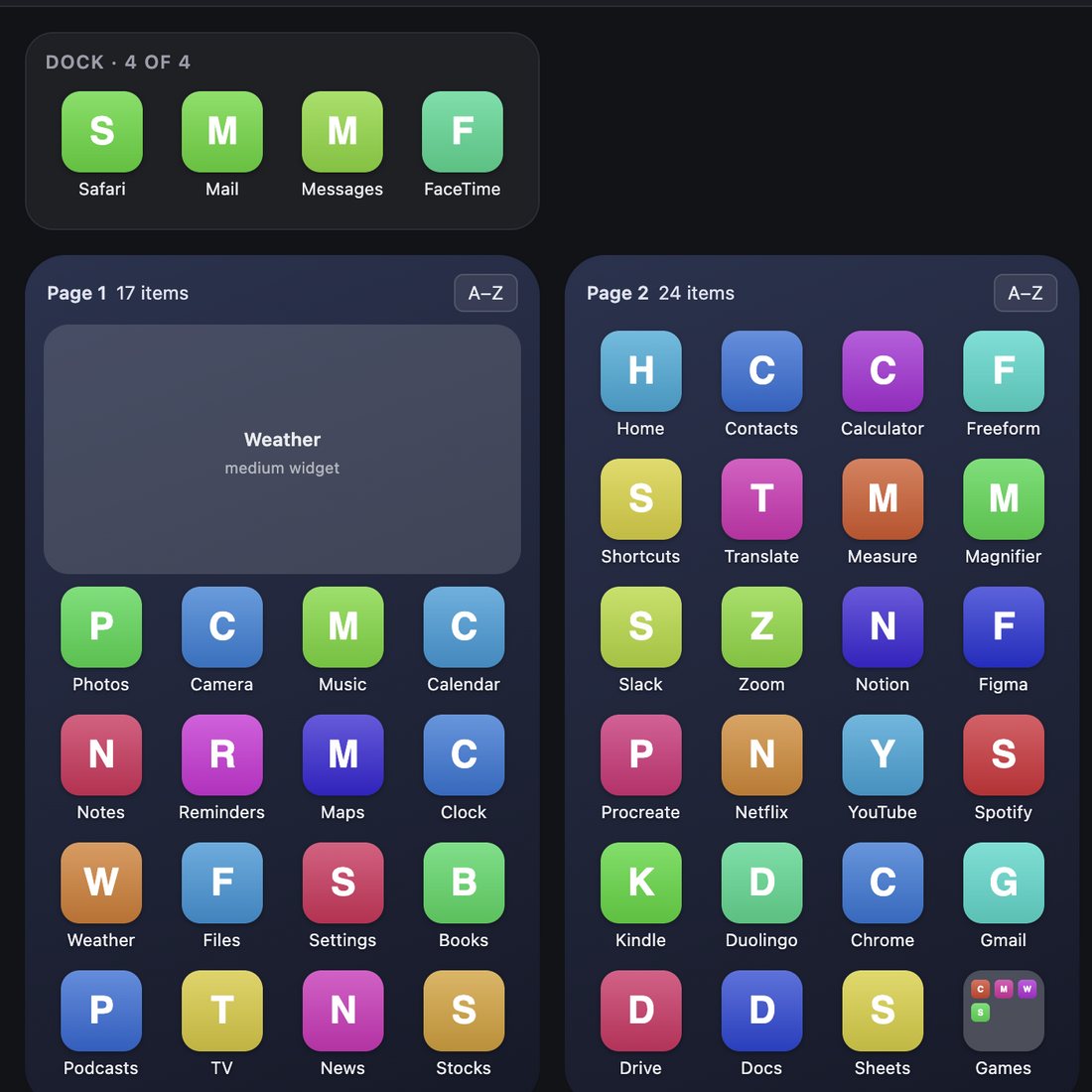
- Arrange detects whether an iPad or an iPhone is plugged in and shows its actual layout: 6 × 5 pages on iPad, 4 × 6 pages and a 4-app Dock on iPhone.
- Find any app
- Search by name to find an app, wherever it’s hiding.
Move a lot of apps, fast
- Drag and drop
- Drag apps between pages, into and out of the Dock, and into folders.
- Select many at once
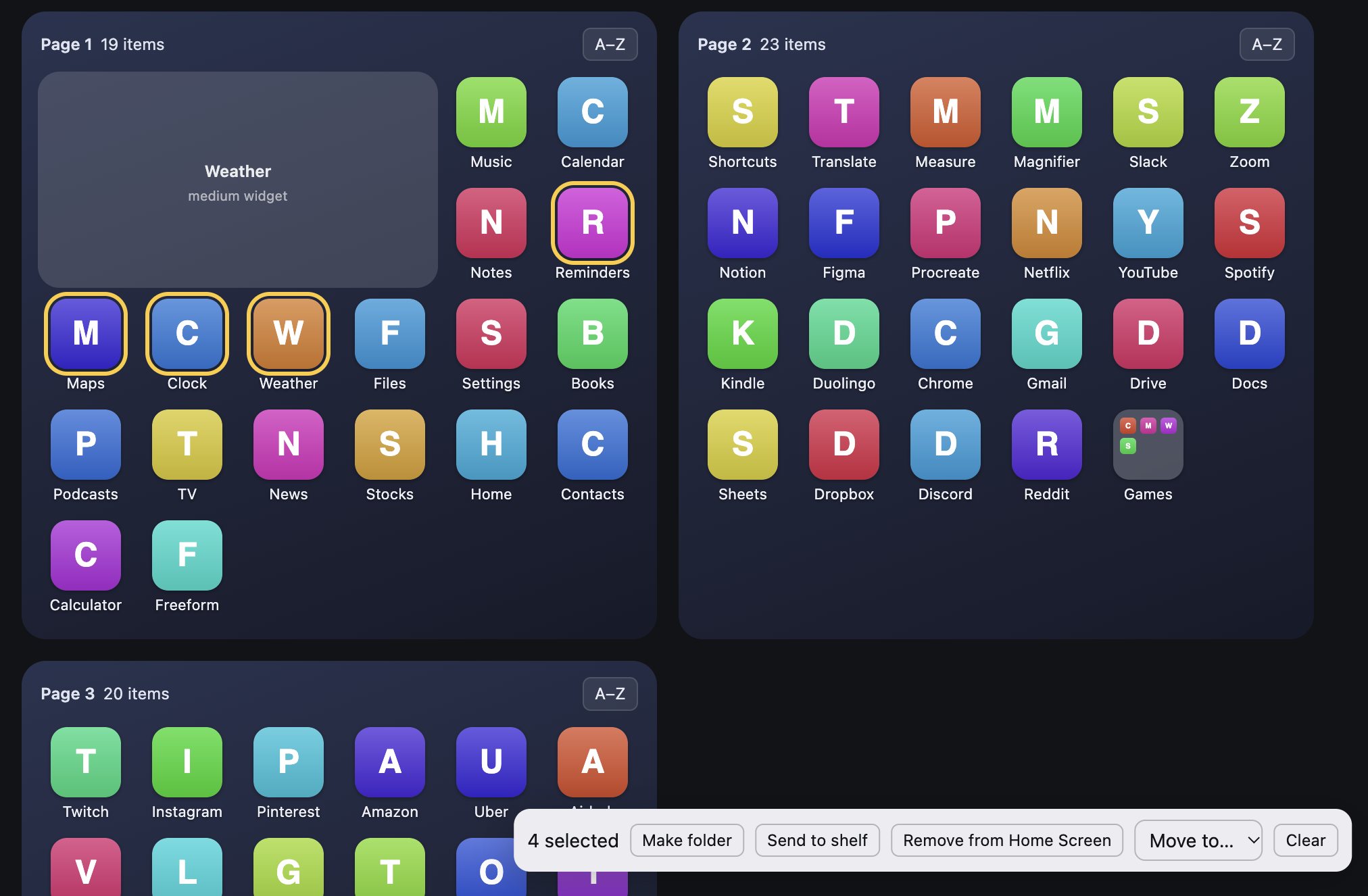
- Click several apps to select them, then act on all of them together.
- Move to a page
- Send a selection straight to a page with Move to, without dragging across the screen.
- The Shelf
- Park apps on the Shelf while you plan a page, then place them when you’re ready.
Folders without the fiddling
- Make a folder from a selection
- Select apps and click Make folder. No dragging one icon onto another and hoping.
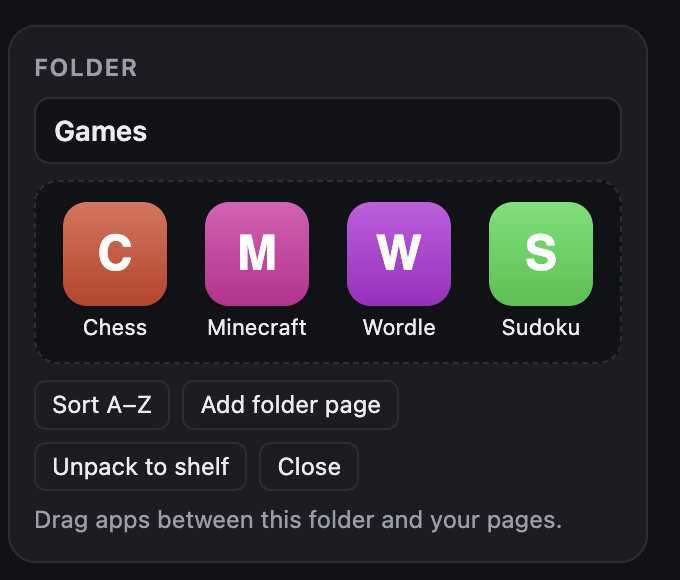
- Open, rename, sort
- Double-click a folder to open it. Rename it, or sort its apps A–Z.
- Add folder pages
- Add a page to a folder when it fills up.
- Unpack in one click
- Changed your mind? Unpack a folder and its apps move to the Shelf, ready to place.
Tidy up without losing anything
- Sort A–Z
- Alphabetize a folder, a page, or your whole Home Screen.
- Remove from Home Screen
- Take apps off your Home Screen without deleting them. They stay installed in the App Library.
- Undo
- Undo as you go. Nothing on your device changes until you press Apply.
- Sample devices
- Open a sample iPad or iPhone to try everything without plugging anything in.
Organize by category, with or without AI
Click Organize and Arrange groups your apps into categories, then puts each one on its own page or in its own folder. You see the whole plan and can change it before anything moves.
-
Choose a layout
One page per category, or one folder per category. Pick fewer, some, or more categories.
-
Review the plan
Drag apps between categories, rename them, or start a new one. Not quite right? Try again.
-
Arrange, then Apply
Arrange lays out your Home Screen. Check it, undo if you like, and press Apply when you’re happy.
Works with the AI you already have
- Claude Code, Codex, Gemini CLI, Cursor Agent, or OpenCode already signed in on your Mac
- Your own Claude, OpenAI, or Gemini API key
- Any OpenAI-compatible server
What the AI sees
Only the names of the apps being organized, their App Store categories, how many categories you asked for, and anything you type. Nothing else from your device. API keys are stored only on your Mac, encrypted. Your AI service’s own pricing and terms apply.
Safe by design
- Backup before every Apply
- Arrange saves your current layout before it changes anything.
- Restore any backup
- Go back to an earlier layout whenever you like.
- Direct over USB
- Arrange talks to your device over the cable. No account, no server, nothing to sign up for.
What you need
- A Mac running macOS 12 Monterey or later
- An iPhone or iPad
- A cable to connect them
- To tap Trust on your device the first time you connect
Get your Home Screen back in order.
Try it free. Pay $4.99 once, only when you apply, and use it with every iPhone and iPad you plug into your Mac.